How to Set Screen-Time Limits That Actually Stick
Most screen-time limits fail for one reason: the 'Ignore Limit' button. Here's what the research says actually works, the exact iOS and Android setup steps, and the analog habits that replace the screen.
By The Brain Deck Editorial
A limit alone rarely changes behavior, because every phone hands you a one-tap way out. Set the limit for awareness, add friction so the bypass costs something, and give the freed minutes a ready analog replacement.
Key Takeaways
- A limit alone rarely changes behavior - a 242-person study found screen-time tracking raised awareness but didn't reliably cut usage. People want to monitor their phone, not control it.
- The bypass is the bug - 'Ignore Limit' and deletable timers get scrambled through and forgotten. The fix is friction, not a stricter number.
- Friction beats the limit - grayscale mode cut measured screen time faster than time-limit goal-setting, and delaying taps beat hard lockouts by about 16%.
- Replace, don't just block - freed minutes need a low-effort analog thing to do, set out and ready, or the empty hand refills the feed.
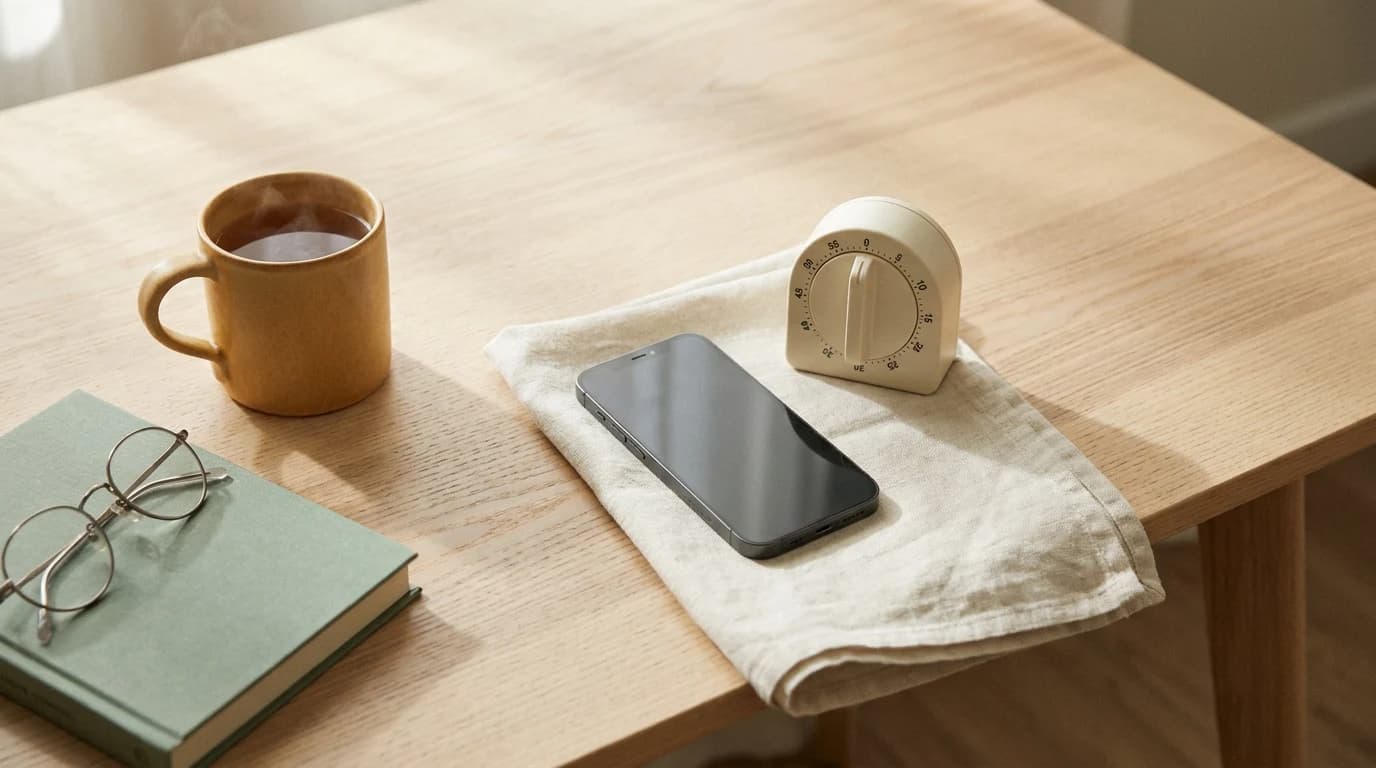
Short answer: a screen-time limit alone rarely changes behavior, because every phone gives you a one-tap way out. What the research supports: set the limit for awareness, add friction so the bypass costs something, and give the freed minutes an analog replacement. Below are the exact iOS and Android steps, plus the habit design that makes them last.
Why most screen-time limits quietly fail
The default limit is a soft speed bump. Hit it, and iOS shows "Ignore Limit" while Android's timer deletes in two taps. University of Michigan researchers who built an alternative to lockouts put it plainly: "Lockout apps are pretty disruptive, so if someone is in the middle of an important task or a game, they'll scramble to skip through the screen timer. Then, they can forget about the time limit and spend more time on the phone than they wanted to" (Guo et al., CHI 2024).
That is the whole failure mode. The limit doesn't lose to weak willpower; it loses to a button designed to be pressed. The fix isn't a stricter number — it's changing what happens at the moment you'd normally tap through.
What the research says works instead
Three findings point the same way: make the phone slightly harder to use, and give yourself somewhere else to go.
That experiment compared three groups: grayscale (design friction), a time limit (goal-setting), and just watching the numbers (control). The grayscale group showed "an immediate, significant reduction of objectively measured screen time," while the time-limit group's drop was "smaller and more gradual" (Zimmermann & Sobolev, Cyberpsychol Behav Soc Netw, 2023). Friction outperformed the limit.
| Approach | What it does | Why it sticks (or doesn't) |
|---|---|---|
| Time limit only | Warns, then offers "one more tap" | Builds awareness; easy to dismiss and forget |
| Limit + friction | Grayscale, home-screen cleanup, delayed unlock | Raises the bypass cost right when you'd cave |
| Limit + replacement | A ready analog thing to do instead | Removes the "now what?" that reopens the feed |
The exact setup: iOS Screen Time
These are the current official steps (Apple Support). Do all four — the last two are the friction most people skip.
Step 1: Turn on App Limits
Settings → Screen Time → App Limits → Add Limit. Pick a category (Social, Games) or drill into a single app, then set the daily time. Categories are blunt; single-app limits on your two worst offenders are sharper.
Step 2: Schedule Downtime
Settings → Screen Time → Downtime → Scheduled. During Downtime only calls, messages, and apps you allow stay open. Set it for the two windows that matter most: the first hour awake and the hour before bed.
Step 3: Add friction the limit can't undo alone
Turn on grayscale (Settings → Accessibility → Display & Text Size → Color Filters), move tempting apps off the home screen into a folder on the last page, and turn off their notification badges. This is the ~16% the lockout can't buy you by itself.
Step 4: Use a passcode you have to walk to get
Set a Screen Time passcode a partner holds, or one written down in another room. The point isn't secrecy — it's making "Ignore Limit" cost a walk instead of a tap.
The exact setup: Android Digital Wellbeing
Steps per Android Help (paths vary slightly by manufacturer).
Step 1: Set App timers
Settings → Digital Wellbeing & parental controls → App timers. Tap the timer icon next to an app and choose a daily amount. When it runs out the app closes and its icon dims until midnight.
Step 2: Turn on Focus mode
Same menu → Focus mode → choose the apps to pause, then "Set a schedule" so it triggers itself. Paused apps can't open and go silent — no notification to pull you back.
Step 3: Schedule Bedtime mode
Digital Wellbeing → Bedtime mode → Bedtime routine. It grays the screen and mutes the phone on your sleep schedule — the built-in version of the grayscale friction the research favors.
Replace the screen, don't just block it
Every intervention above frees up minutes and hands you a "now what?" If the only answer is the phone in your other pocket, the limit loses by default. Pre-loading a low-effort analog option closes that gap:
- Leave the replacement out. A book open on the couch, a puzzle mid-solve, a prompt deck on the desk — zero startup cost beats good intentions.
- Make the phone the harder choice. Charge it in another room overnight so "check it" costs a walk — pairing with the walk-to-get-it passcode above.
- Swap, don't subtract. "Read ten pages" sticks better than "don't scroll," because the brain reaches for a defined next action, not a void.
This is the logic behind our screen-free reset and the case for productivity tools that aren't apps: a physical object on the table isn't competing for your attention the way a locked app icon still is. An analog prompt deck like The Brain Deck works for the same boring reason a jigsaw does — it's already out, it asks little, and it ends.
What the research does NOT support
It does not support the belief that a screen-time app, by itself, fixes screen time — the single most common way this goes wrong. Tracking reliably improves awareness, and Zimmermann found people highest in phone dependence actually prefer the gentle informational version precisely because it's less likely to make them stop. Awareness without friction and without a replacement is a dashboard you glance at on the way to opening Instagram anyway. Set the limit — then make the bypass cost something, and give the freed hour a place to go.
Screen-time limits FAQ
Why can I just tap "Ignore Limit" on my own iPhone?
iOS treats an unmanaged limit as advisory, not a lock. To make it stick, set a Screen Time passcode you don't keep in your head — ideally one another person holds — so bypassing takes a deliberate step, not a reflex.
Does grayscale really reduce phone use?
In a 112-person field experiment it produced a faster, larger drop in measured screen time than a time limit did. Color is part of what makes feeds compelling; removing it lowers the pull without locking you out.
What screen-time limit should I set?
Start with your two worst apps, not a whole-phone number, set slightly below your current average so it bites without feeling absurd, and tighten once the friction and replacement habits are in place.
Are app timers or lockouts better?
Neither wins alone. Adding friction (delayed taps, grayscale) beat hard lockouts by about 16 percent, largely because lockouts get scrambled through and forgotten. Pair whichever timer your phone has with friction and a replacement.
Sources
- Zimmermann, L. (2021). "Your Screen-Time App Is Keeping Track": Consumers Are Happy to Monitor but Unlikely to Reduce Smartphone Usage. Journal of the Association for Consumer Research, 6(3) — tracking improved self-awareness (field study, N=242) but did not reliably reduce usage; dependent users preferred informational tracking over restriction.
- Zimmermann, L., & Sobolev, M. (2023). Digital Strategies for Screen Time Reduction: A Randomized Field Experiment. Cyberpsychology, Behavior, and Social Networking, 26(1) — grayscale design friction (N=112) produced a faster, larger measured reduction than time-limit goal-setting.
- Guo, A., et al. (2024). InteractOut, University of Michigan (ACM CHI 2024) — interfering with swipes/taps reduced screen time and app opens ~16% more than hard lockouts; lockout limits get skipped through and forgotten.
- Apple Support — Get started with Screen Time on iPhone (App Limits, Downtime).
- Android Help — Manage your time with Digital Wellbeing (App timers, Focus mode, Bedtime mode).
What people on Reddit actually say
- r/nosurf⬆ strong consensus
The repeated report is that Screen Time and app timers do almost nothing until the passcode is handed to someone else or set to something the user genuinely can't remember - the moment the bypass is one self-approved tap, it gets tapped.
- r/digitalminimalism💬 commonly repeated
People consistently say grayscale plus charging the phone in another room outlasts every limit they set, because it changes the environment instead of relying on catching themselves in the moment.
Paraphrased consensus from public threads — no direct user quotes.
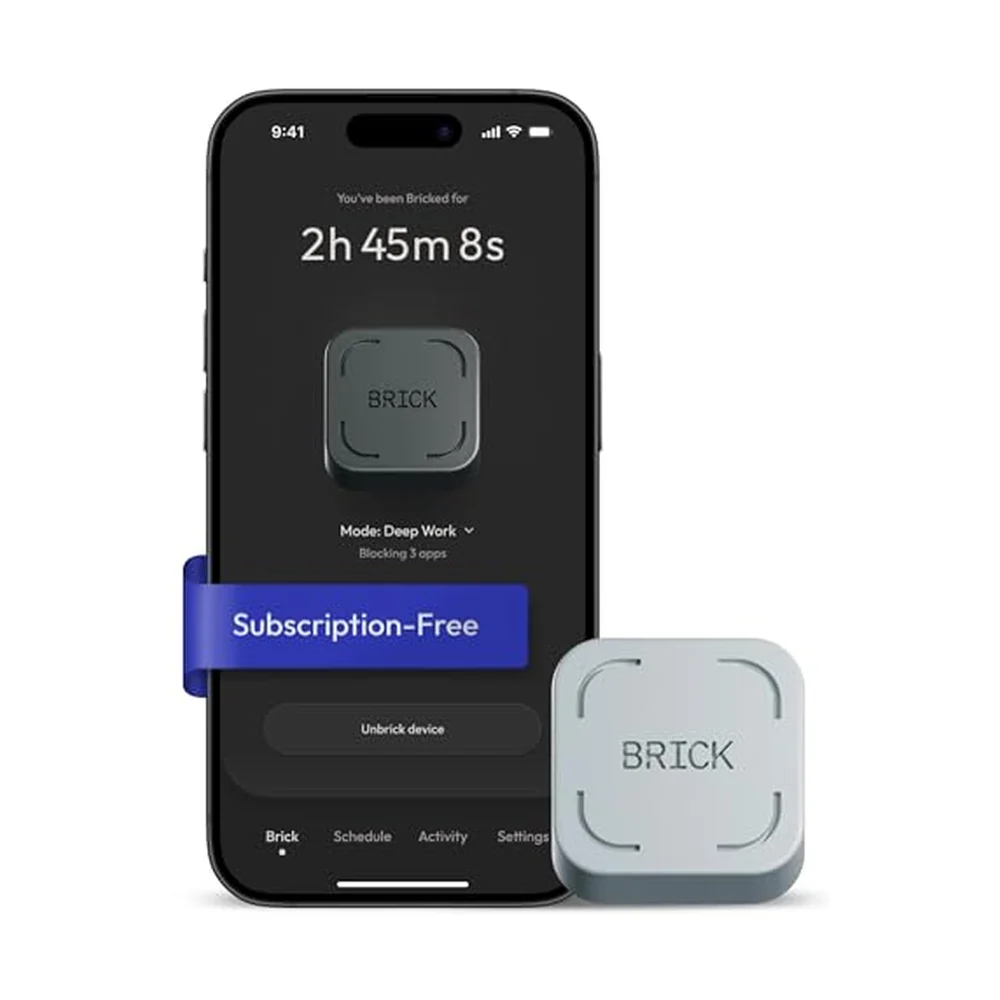
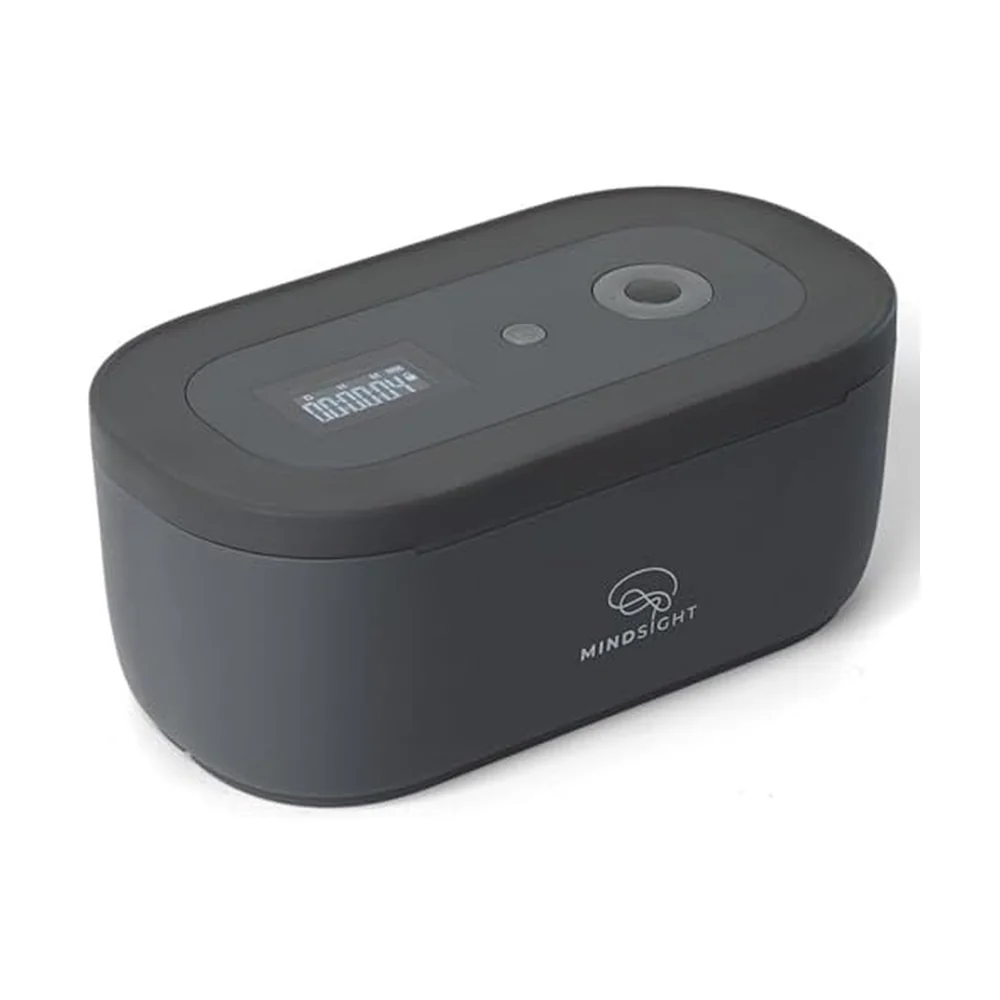
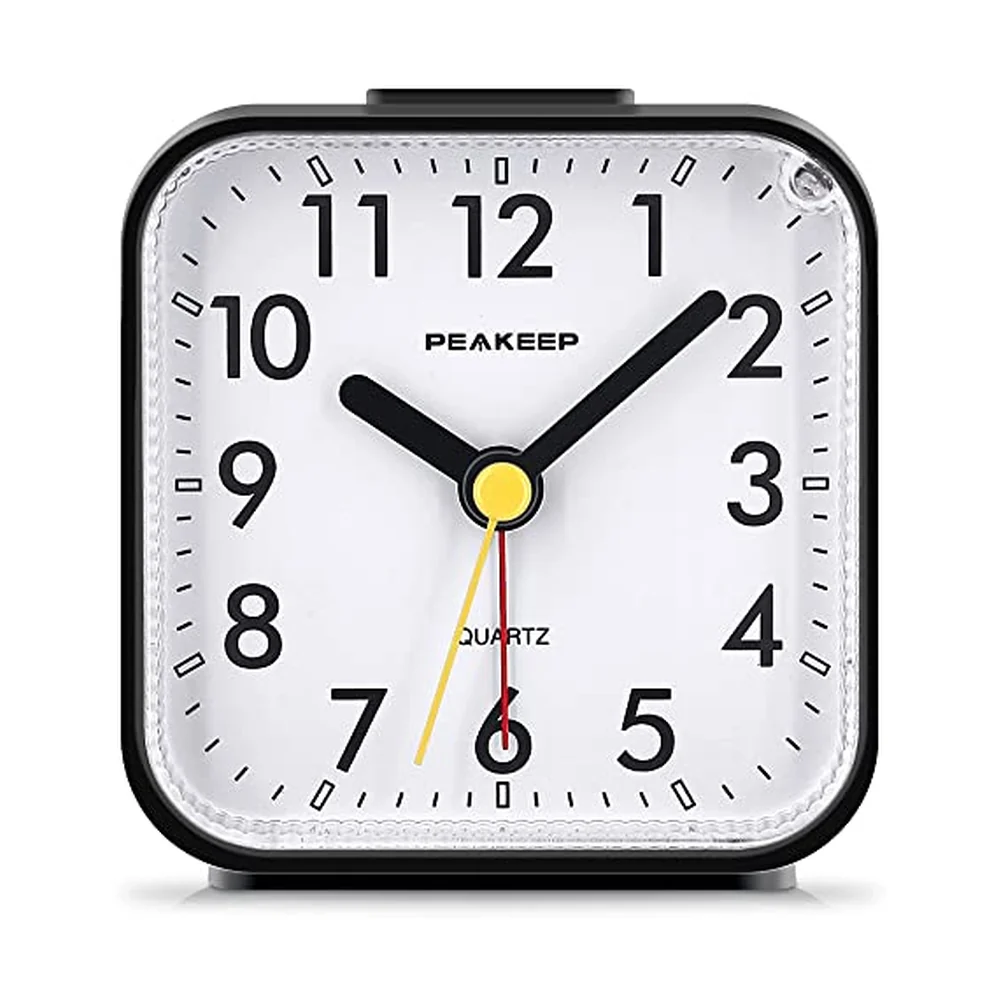
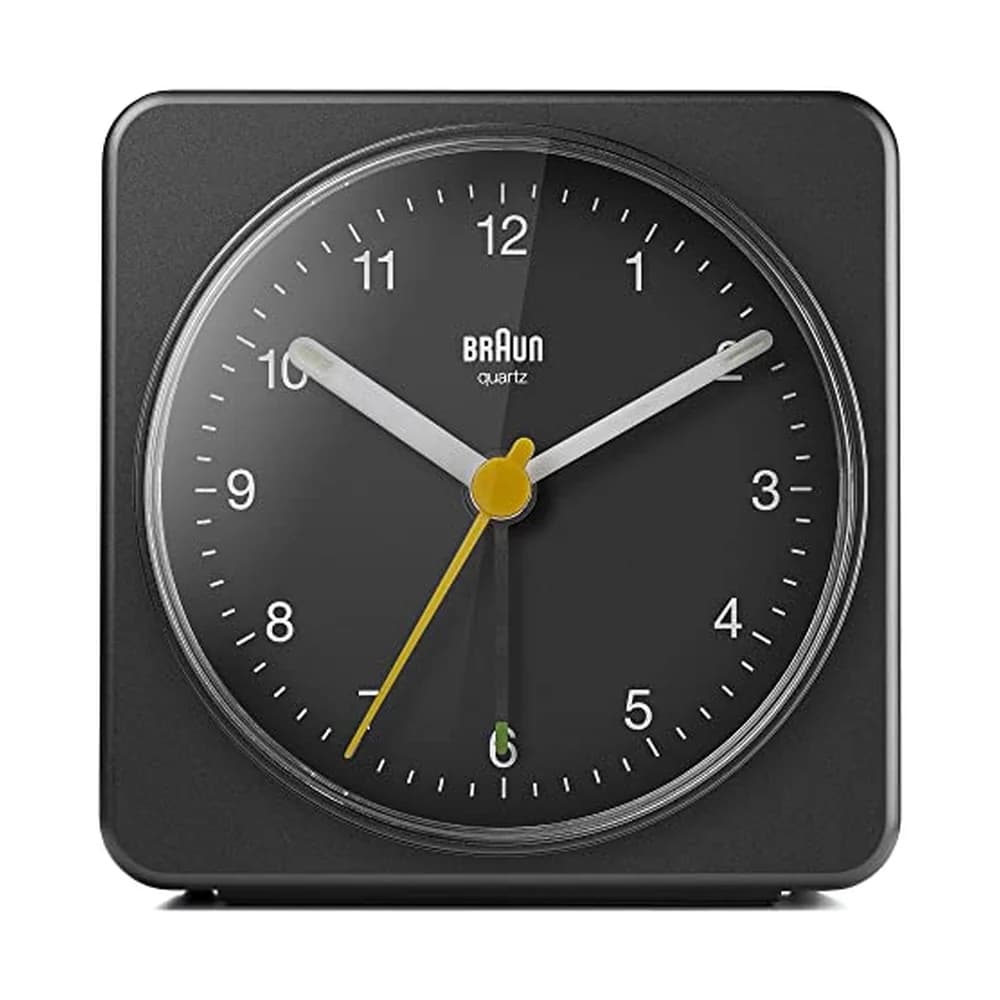
Tools that help with this
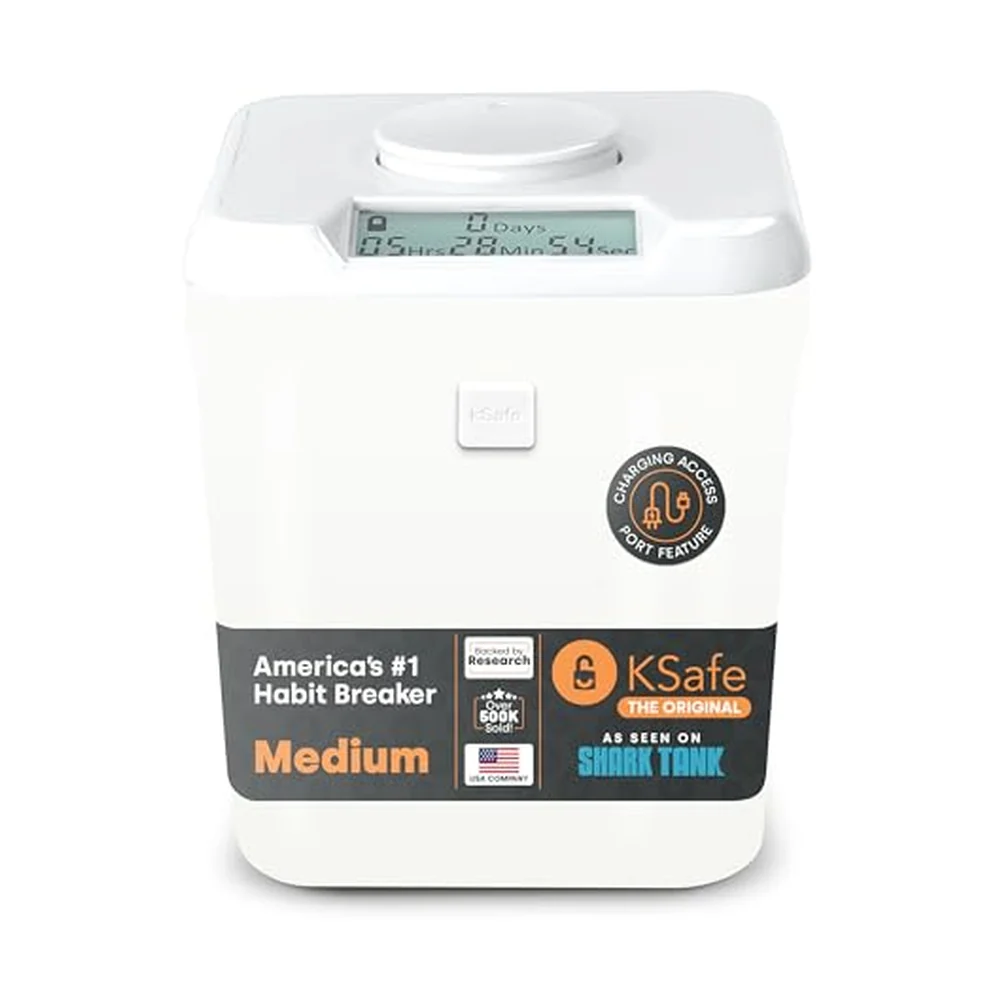
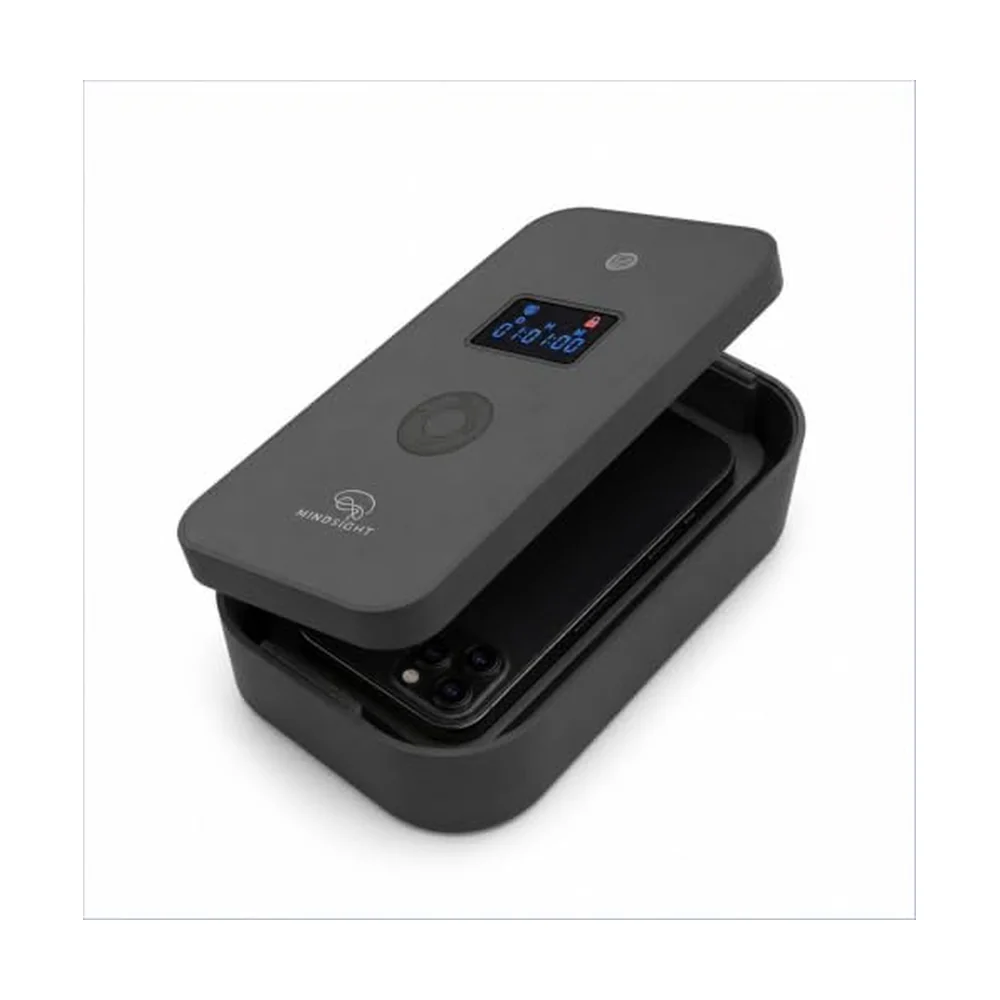
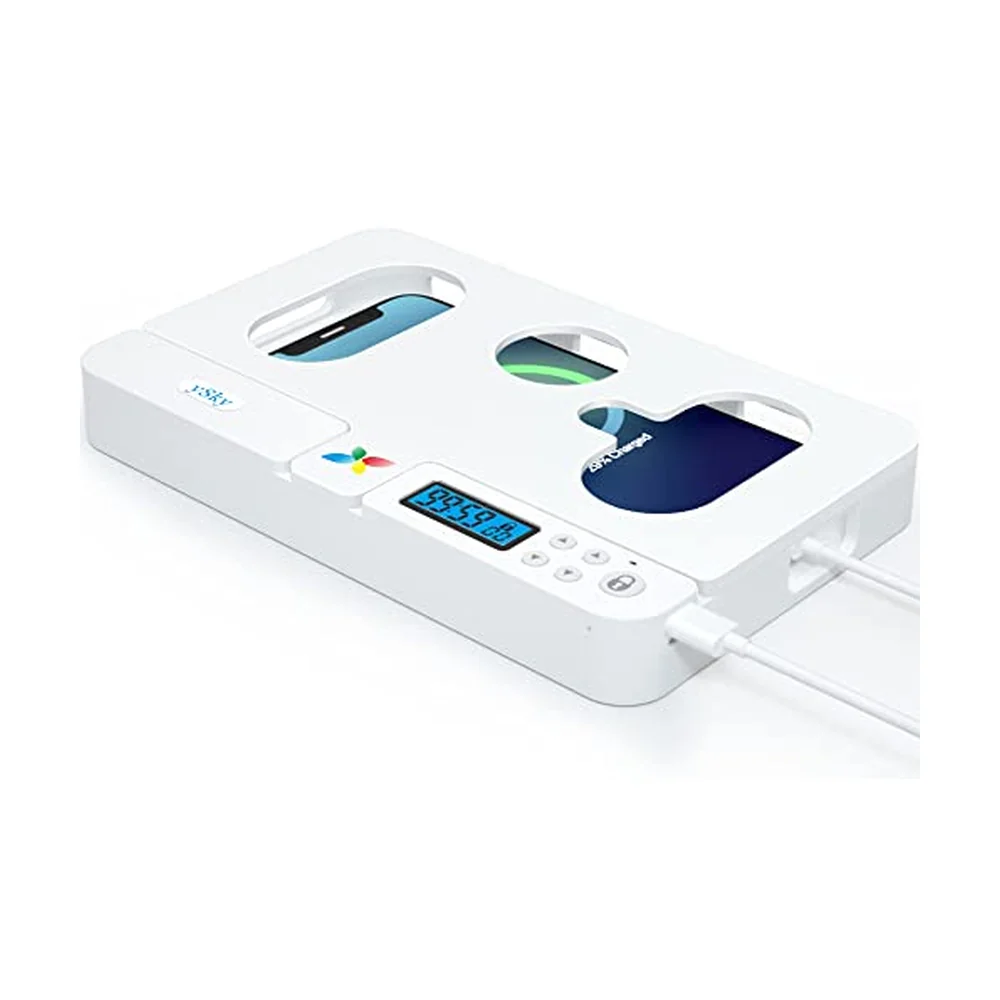
Ready to get unstuck?
The Brain Deck gives you 52 science-backed strategies in your pocket — a physical card deck you keep on your desk, no app required.
See the CardsLaunching soon · 54 cards · Premium matte finish